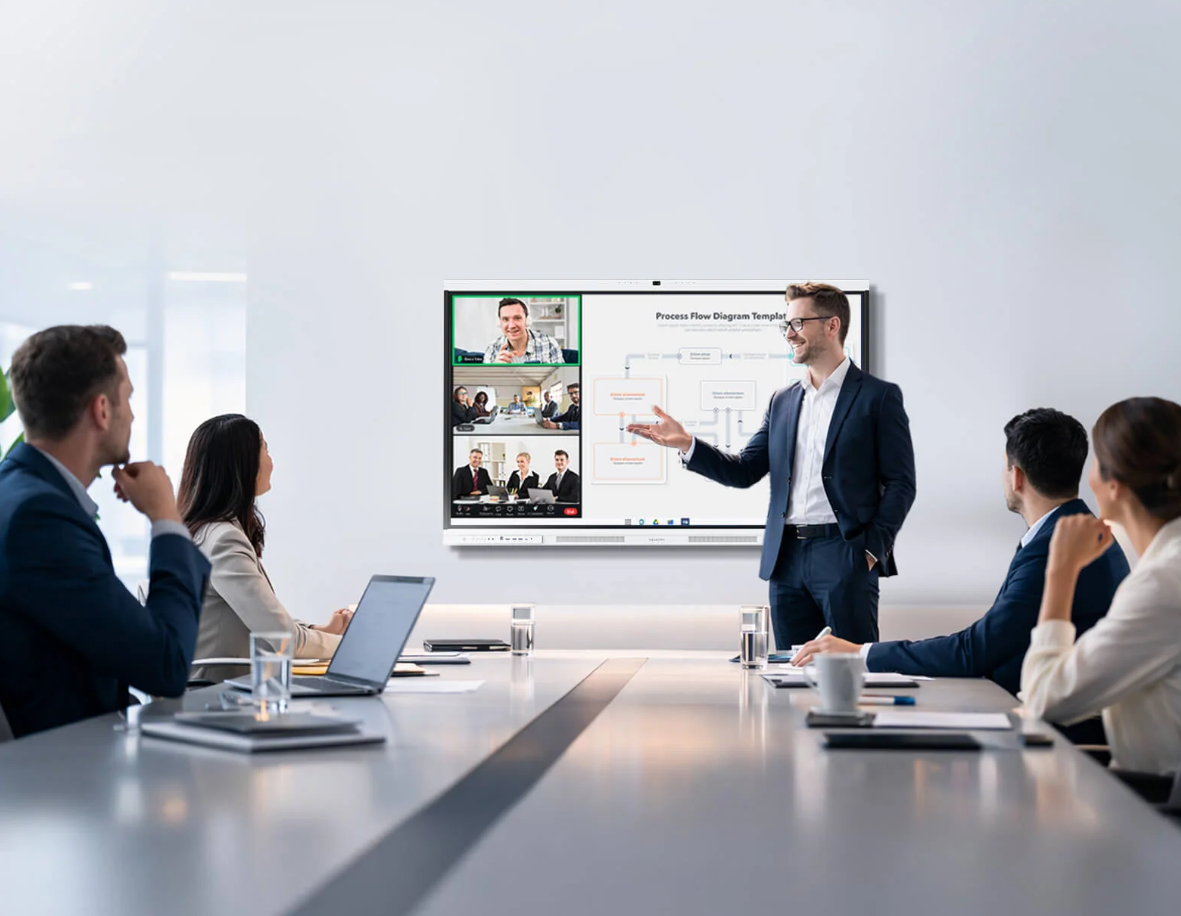
Choosing a smart board for a school or business starts with the work people need to do. A classroom may need quick annotation and simple lesson sharing, while a meeting room may depend on clear remote audio and reliable screen access. Comparing feature lists alone can hide these differences and make long-term value harder to judge.
Nework is a California-based smart audiovisual and collaboration brand with more than 20 years of professional AV industry experience. Its NewBoard interactive displays combine touch interaction, wireless screen sharing, collaborative annotation, and smart management for education and business settings. Buyers can explore the company’s solutions and assess whether they fit their rooms, workflows, and deployment plans.
Start With the Room’s Main Job
A K–12 classroom and a small conference room may both use an interactive display, but their daily demands differ. Teachers may switch between lesson materials, handwritten notes, and student activities. Business teams may need to review presentations, mark up documents, and include remote colleagues in discussions.
Before comparing brands, buyers should list the tasks that happen in each room. Record how many people use the display, which devices they bring, and whether sessions include remote participants. This gives the evaluation a practical basis instead of treating every function as equally important.
Check Image Quality Against Real Viewing Conditions
Camera specifications matter when a display supports hybrid meetings. Resolution can affect how clearly remote participants see people and objects, but room lighting, camera placement, and framing also shape the result. Buyers should check whether faces remain visible from different seats when several people speak around the table.
The listed 48MP Pro Camera offers 4K clarity with intelligent 3A optimization. During a demonstration, procurement teams can assess image quality in the actual room and check whether the framing suits the table layout. They should confirm which features are available in the selected configuration rather than assuming every model has the same setup.
Treat Audio as a Separate Buying Criterion
Poor audio can make a meeting tiring even when the display and camera perform well. Echo, ventilation noise, keyboard sounds, and people speaking from different sides of a room may affect remote participants. The key test is whether speech remains understandable during a normal discussion.
The listed system includes 8 AI Mics and 300+ noise filters. Buyers can test it with several speakers, ordinary room noise, and a remote caller. They should ask how microphone pickup performs at the expected seating distance and whether the room needs additional audio equipment. This provides a more useful comparison than a specification alone.
Review Compatibility and Daily Workflow
Device compatibility affects how easily staff can start a lesson or meeting. Procurement teams should check which laptops and operating systems can connect, how wireless sharing works, and whether users need to install software or request administrator access.
For Nework vs other smart boards, buyers should compare the complete workflow: opening a file, sharing a screen, adding notes, saving the results, and passing them to colleagues. They should also check whether the display supports the collaboration tools already used by the organization. A short trial with typical files can reveal gaps that a brochure may not show.
Consider Security, Updates, and Optional Computing
Shared displays can become part of an organization’s daily IT environment, so security and maintenance deserve attention alongside interactive features. IT staff should review account permissions, update practices, network requirements, and the process for managing multiple devices. Schools may also need to consider student access and classroom equipment policies.
The supplied feature list identifies Google EDLA, enterprise-grade security, and automatic system updates. Buyers should confirm the security functions and update policies for the exact configuration with the vendor and their IT team. Optional OPS support can add Windows-based computing, but it should be evaluated against software needs, existing computers, and support arrangements.
Calculate Cost Beyond the Purchase Price
The initial quote is only one part of the total cost. Buyers should also account for installation, mounting, network setup, staff training, warranty coverage, replacement planning, and ongoing support. A display that requires extra adapters or a complicated setup may create additional work for the IT team, even if its purchase price appears attractive.
Schools and small businesses can compare costs by listing the equipment and services needed for each room. Ask suppliers to separate standard features from optional modules, and confirm which accessories are included. It is also useful to ask how software updates, troubleshooting, and repairs are handled after installation.
Make the Final Choice Through a Practical Trial
A structured demonstration can help teams judge whether a smart board suits their real tasks. Prepare a checklist covering image quality, speech pickup, screen sharing, annotation, file handling, user permissions, and the time needed to begin a session.
The right comparison depends on the room, the users, and the work to be completed. Schools should prioritize lesson flow and classroom management, while businesses may place greater weight on hybrid meeting quality and device compatibility. By testing core tasks and confirming deployment, maintenance, and support details, buyers can select a display based on practical fit rather than the length of its feature list.
